What can I make with Glowforge Studio?
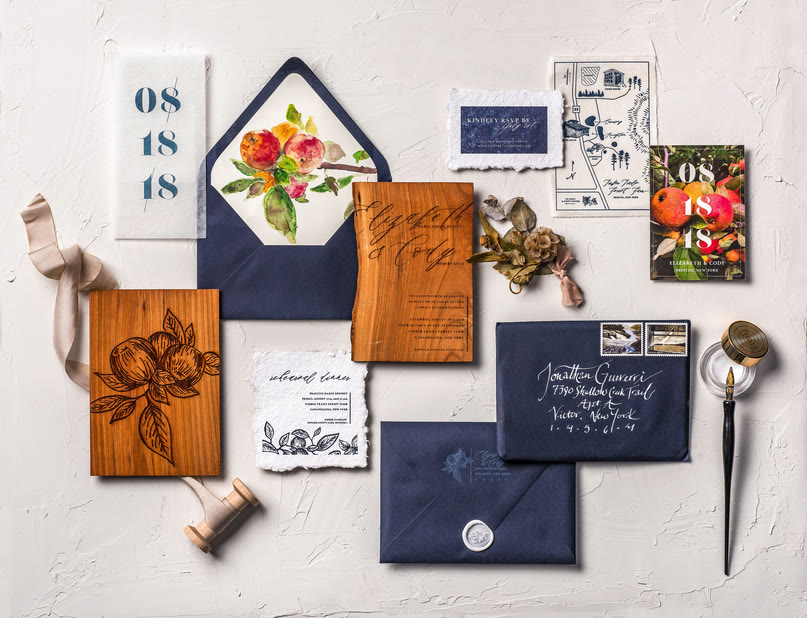
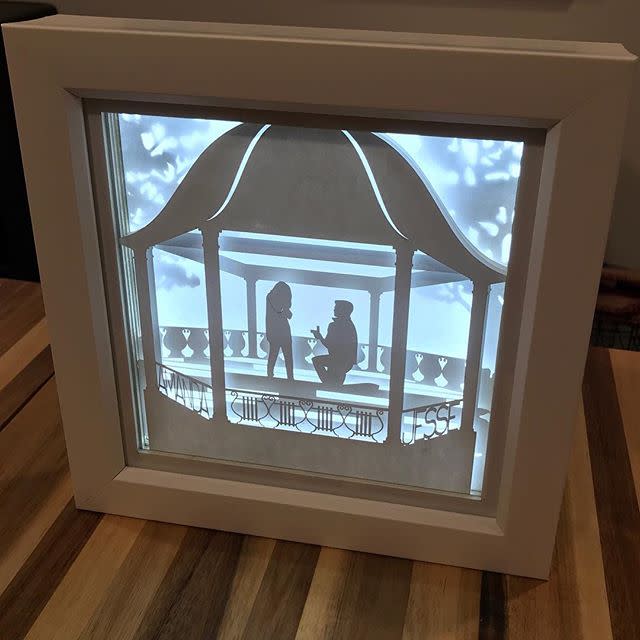
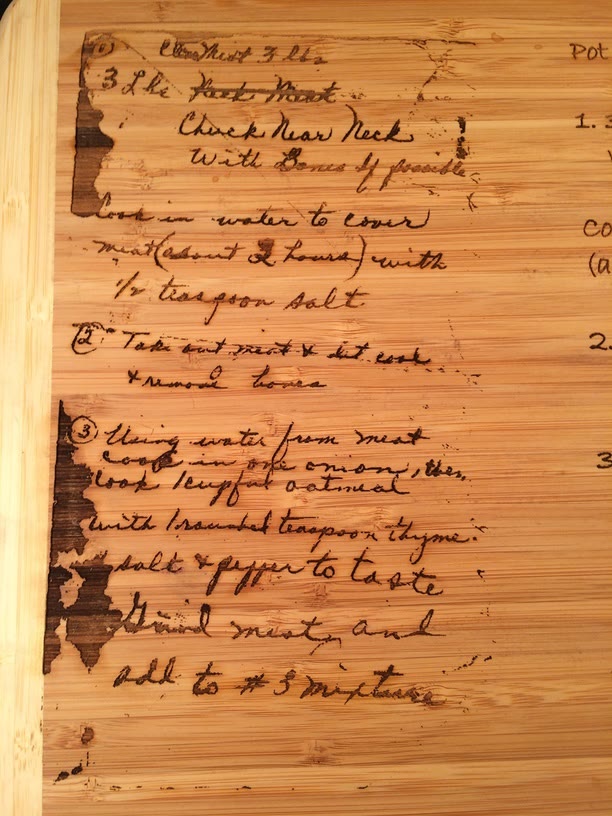
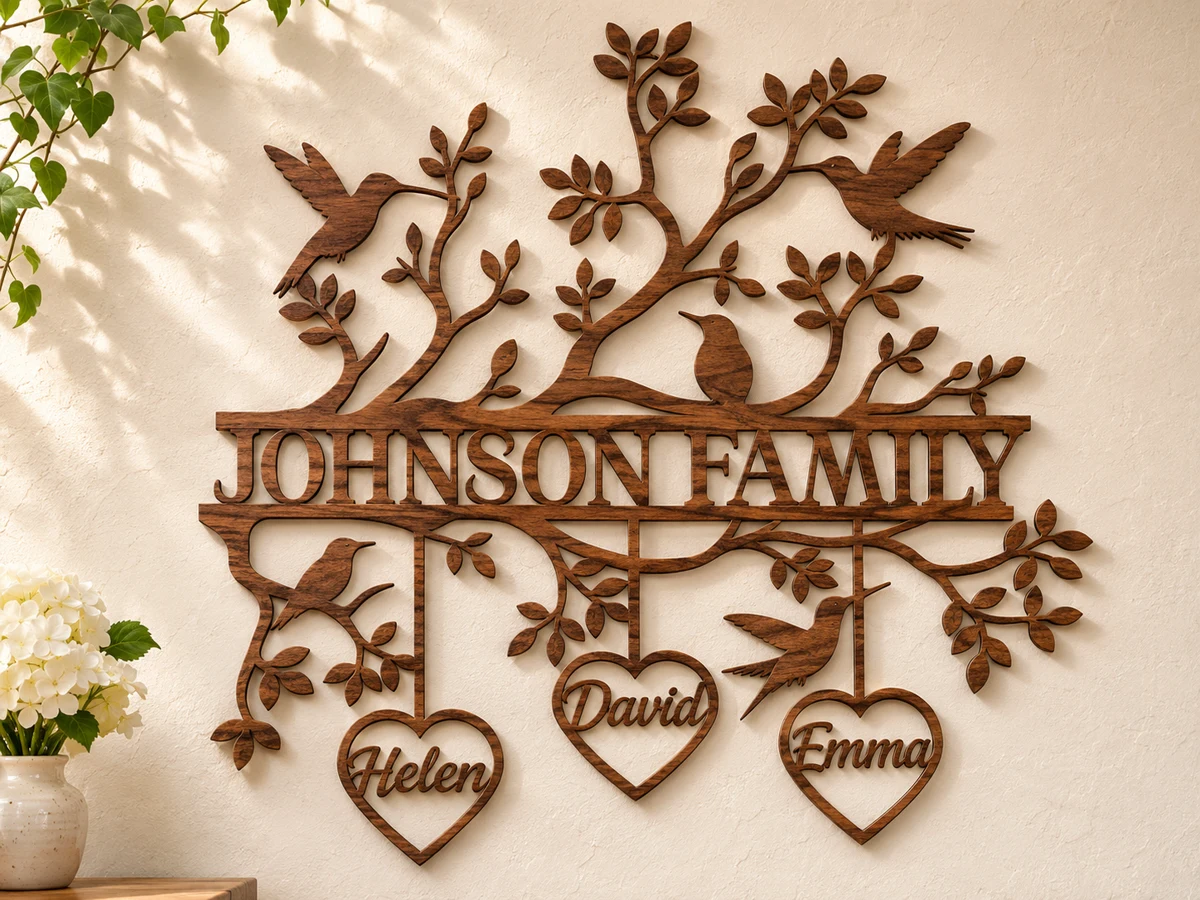
You can design personalized signs, photo coasters, jewelry, boxes, and layered artwork for laser cutting and engraving with Glowforge Studio. Start with a ready-made Catalog design, create your own shapes and text, or bring in artwork to customize.
Is there an AI tool that turns ideas into artwork for laser engraving?
You can turn a written idea into artwork for laser engraving using Magic Canvas in Glowforge Studio. Choose among engraving-focused art styles, explore different subjects and variations, and adjust the generated image before using it in a project.
Where can I find ready-made laser-cutting designs and graphics?
You can choose from over 10,000 designer-made, ready-to-print Catalog designs and over 8 million vector graphics in Glowforge Studio. Personalize a starting design with names, graphics, and your own artwork, or use individual graphics to create a project of your own.
Can I make a laser project from my own photo or drawing?
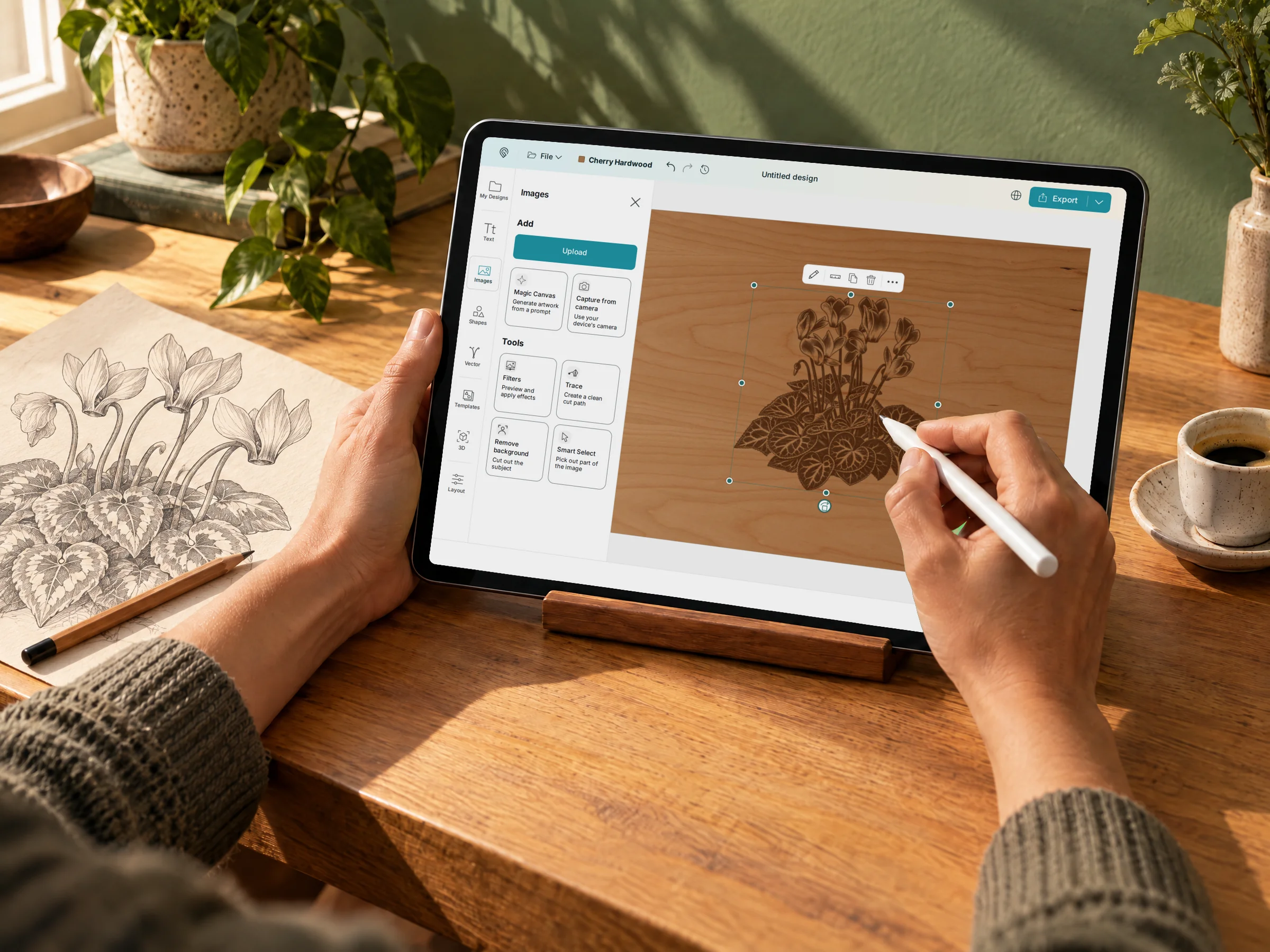
You can bring family photos, sketches, and children's drawings into Glowforge Studio by importing an image or capturing it with your device's camera. Combine your artwork with text, shapes, and library graphics to create a personalized project.
How do I prepare a photo for laser engraving?
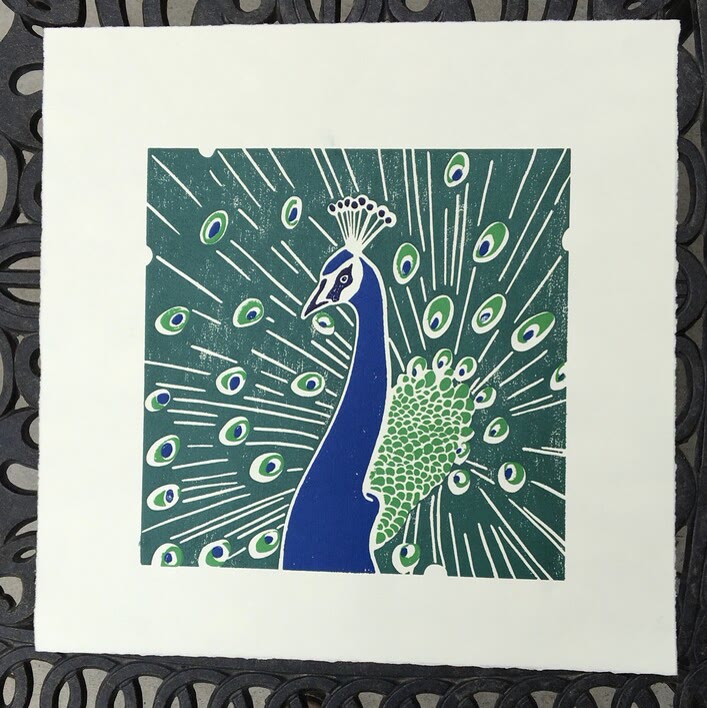
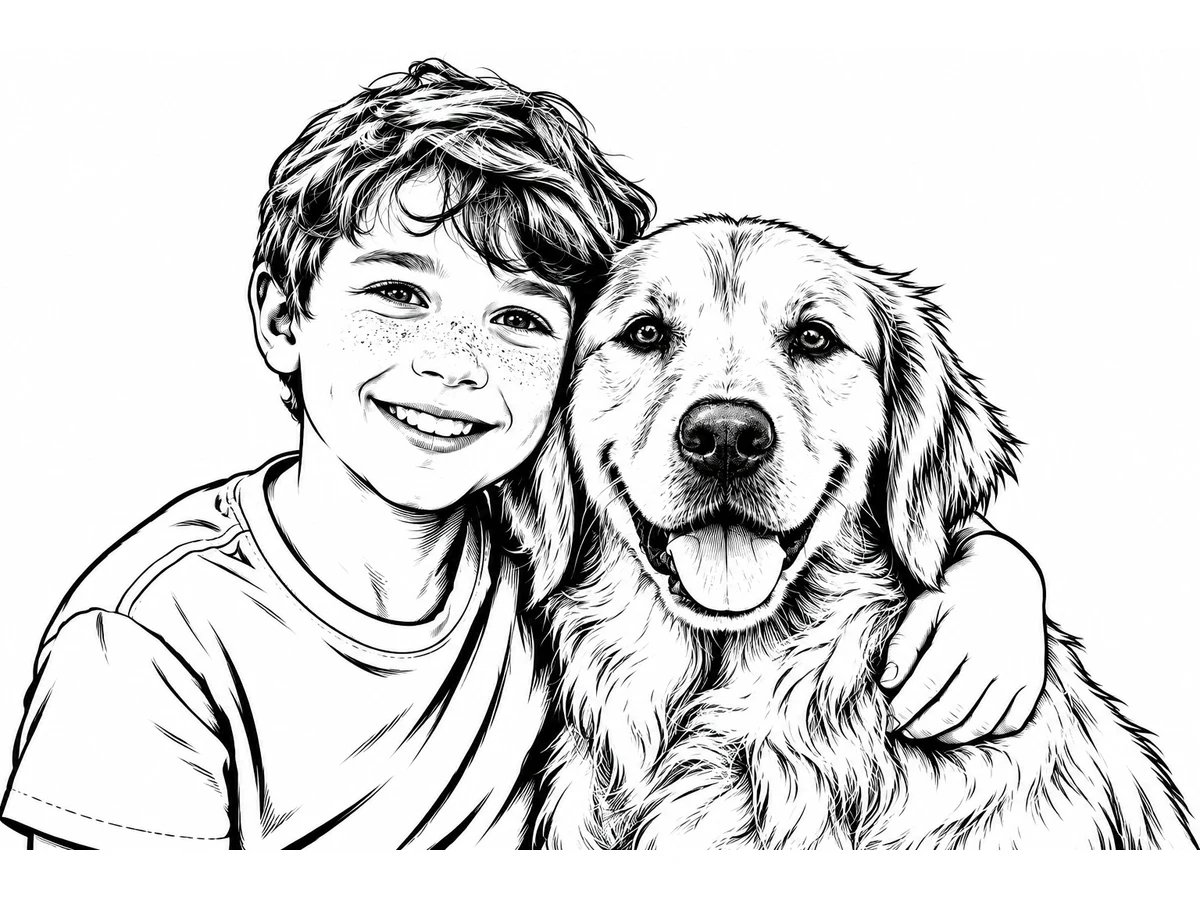
You can prepare a photo for laser engraving using the photo editing tools and engrave-ready filters in Glowforge Studio. Remove a distracting background, adjust brightness and contrast, or apply a line art or woodcut treatment for a photo coaster, portrait, or gift.
How do I turn a picture into shapes a laser can cut?
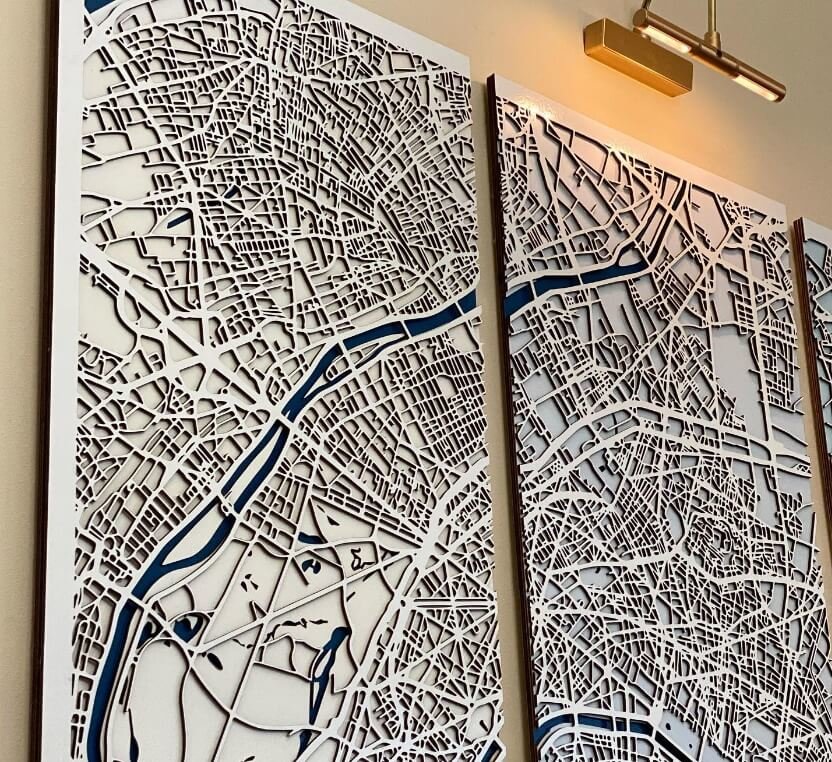
You can turn a picture into editable cut shapes in a few clicks with Trace in Glowforge Studio. It generates vector shapes from your image, saving you from redrawing outlines by hand. For stacked artwork, Layered Trace separates the picture into layers you can cut and assemble.
How do I create an outline to cut out a bitmap image?
You can add a vector cut line around a bitmap image using Outline in Glowforge Studio. Rubber Band wraps a contour around selected pieces, while Offset Path lets you add an inward or outward offset to adjust the border. You can engrave the image and cut around it without drawing the perimeter by hand.
How can I make 3D objects with a laser cutter?
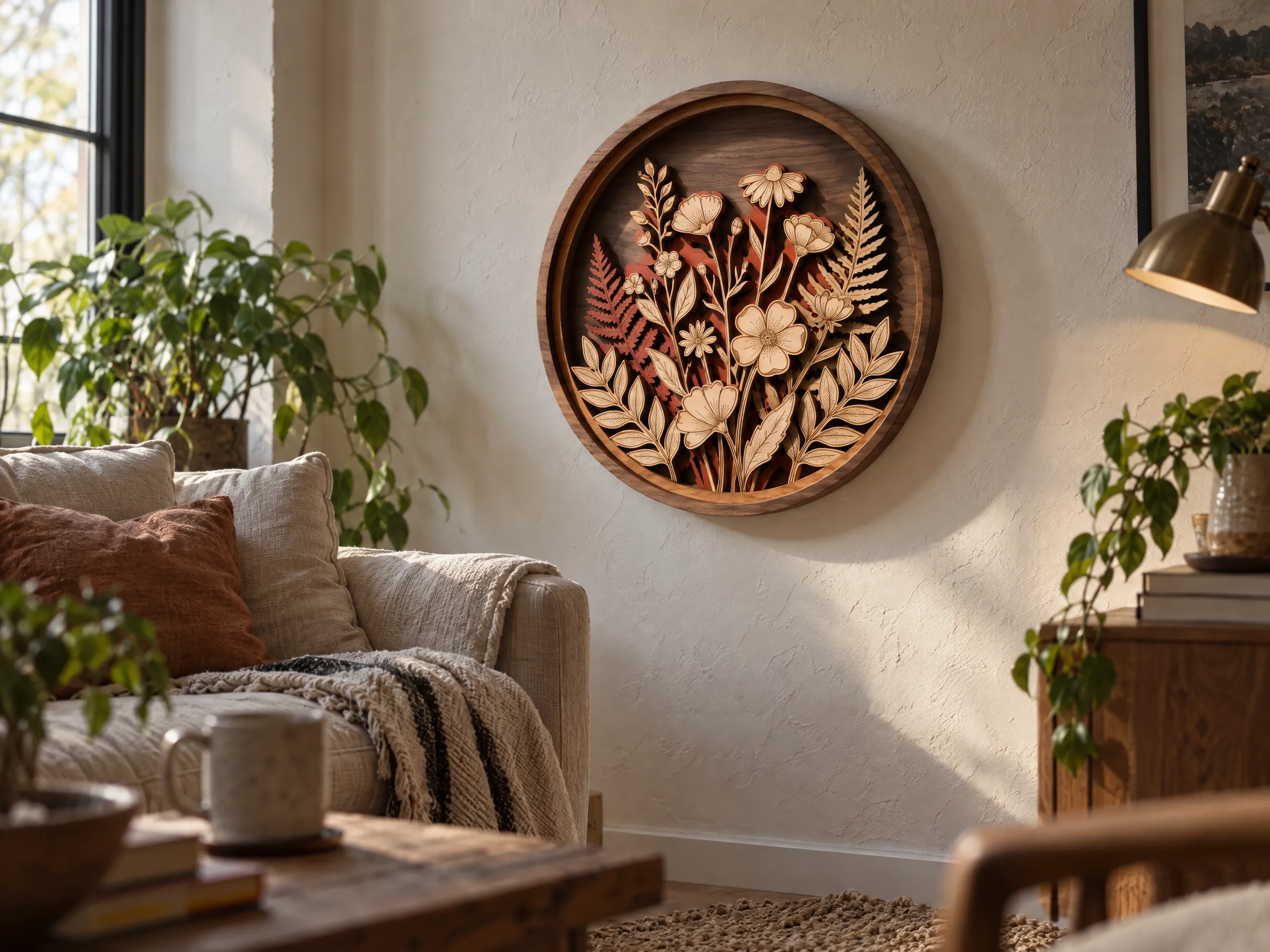
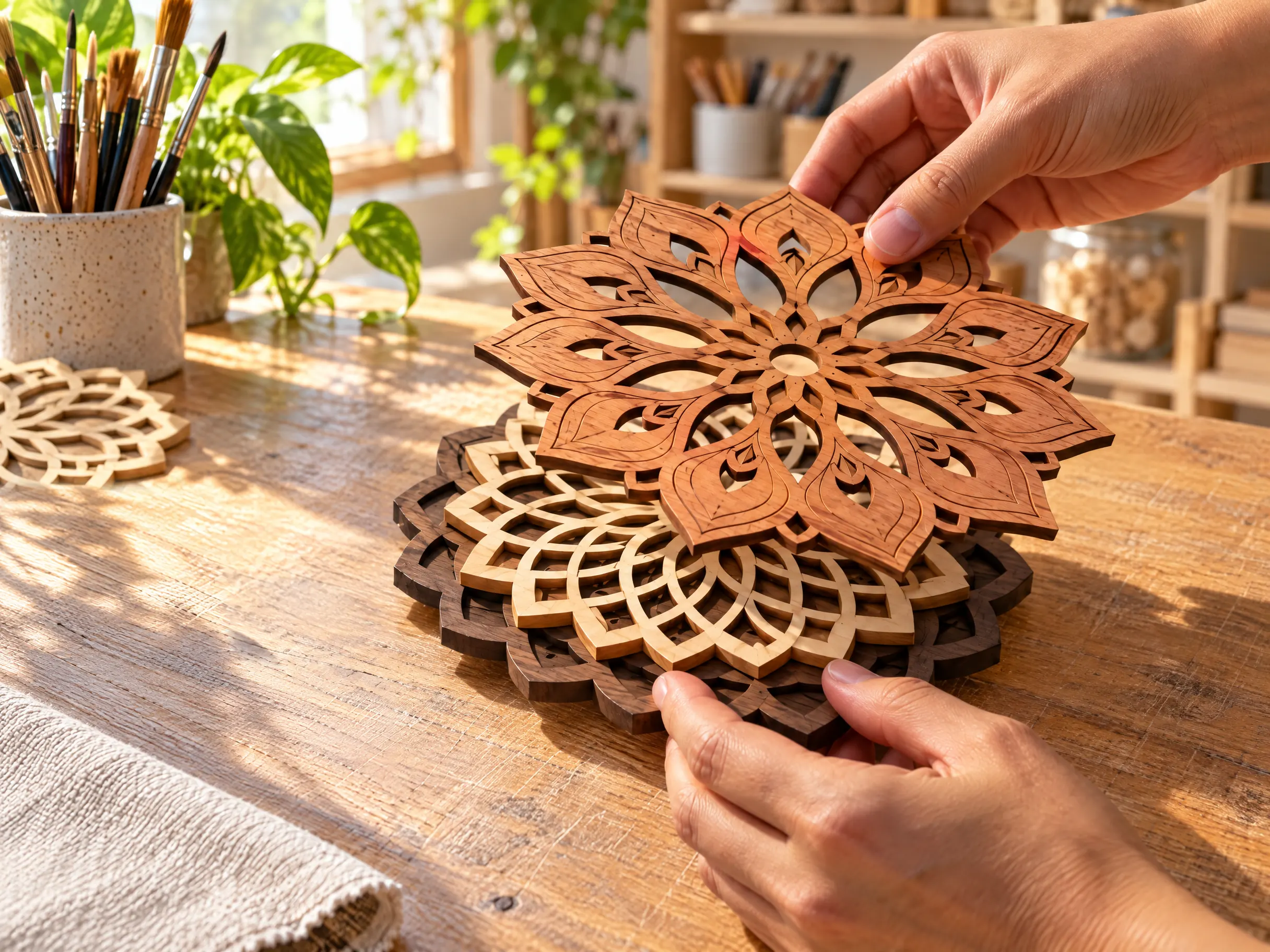
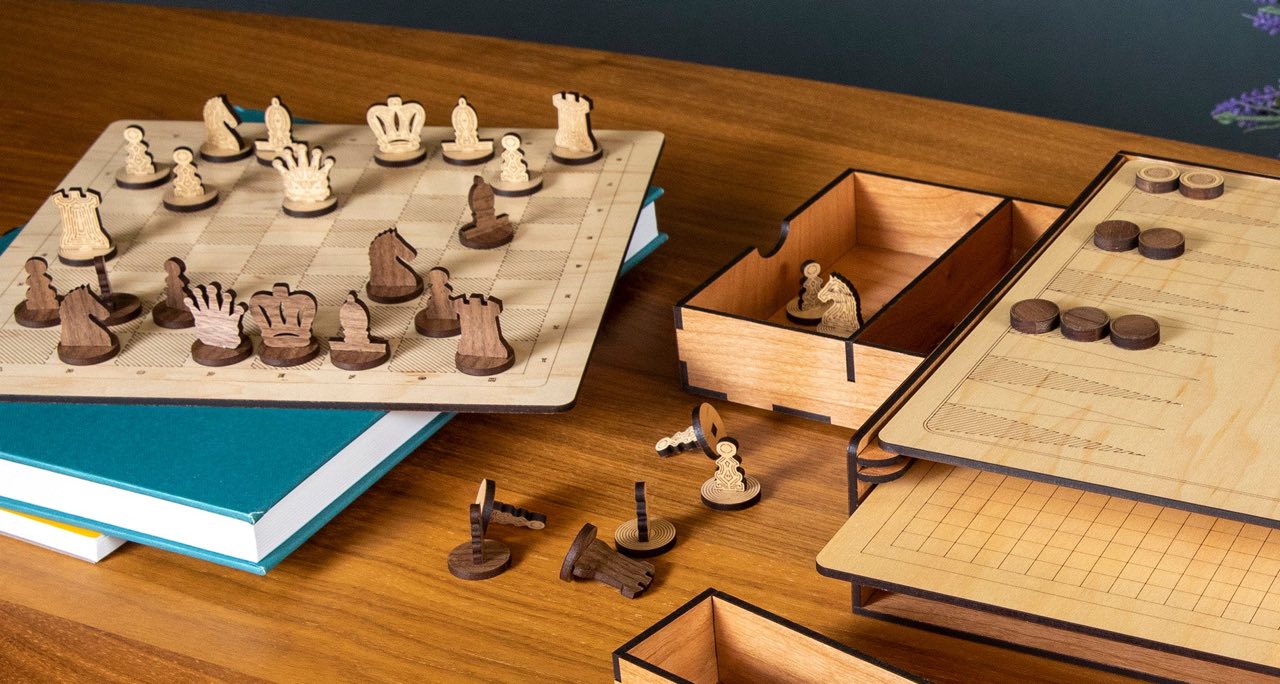
You can design 3D projects from flat parts to cut and assemble using Glowforge Studio. Start with the box generator or a ready-made Catalog template, or import an STL or OBJ model into the built-in 3D Slice tool. Model slicing creates flat cutting plans for constructions such as stacked layers or interlocking slices.
How can I personalize signs and gifts with names or messages?
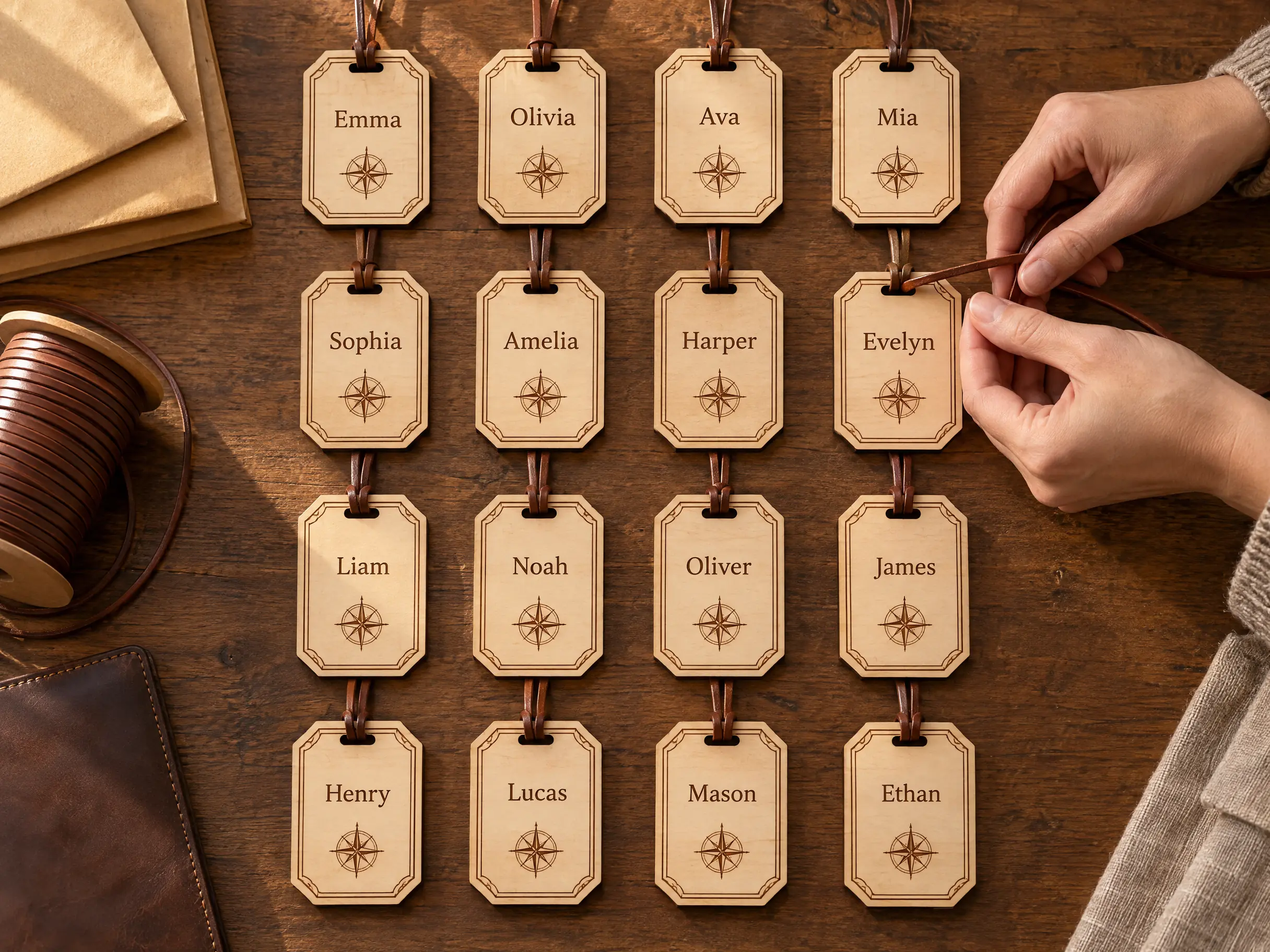
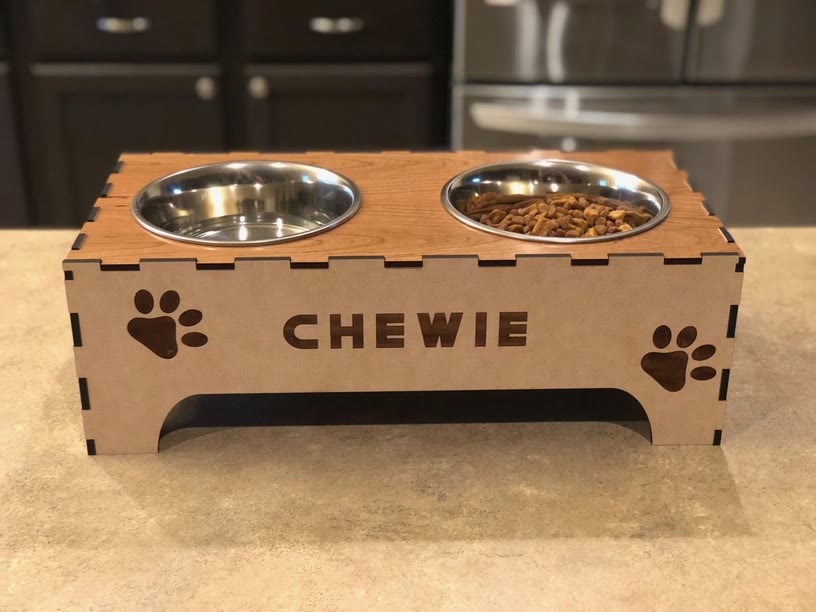
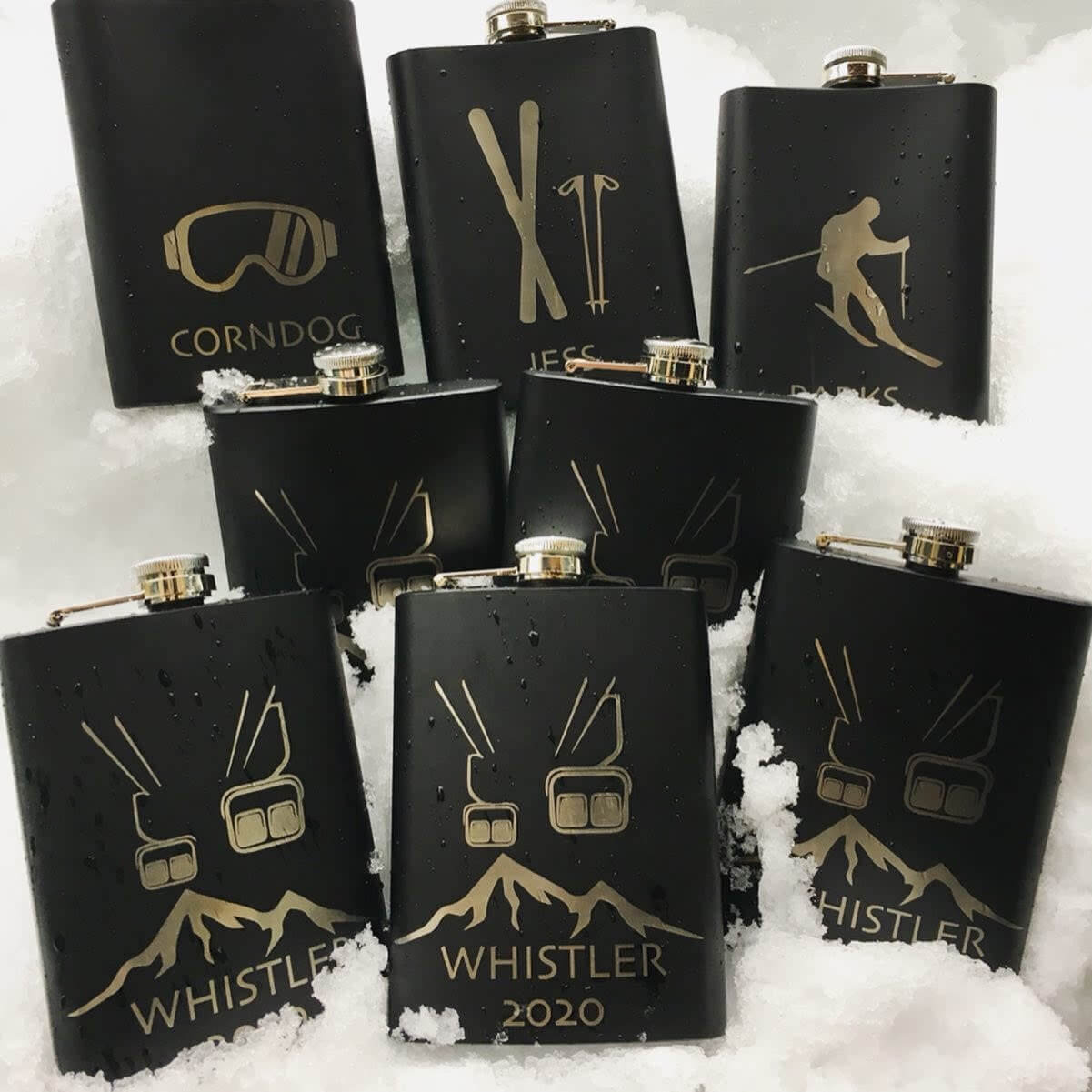
You can personalize signs, gifts, and ornaments with names or messages using the text tools in Glowforge Studio. Choose fonts and text combinations, or use fixed-size text templates to swap names and messages without changing your layout.
How do I curve lettering around a sign or fit words inside a shape?
You can curve lettering along a path with Text on Path in Glowforge Studio, or bend and stretch it to fill a shape with Warp Text. These tools let you wrap a name around a round sign or fit a message into your artwork.
Is there a way to repeat stitch holes or decorative details along a line?
You can add repeating details, including perforations and stitch holes, with Patterned Line in Glowforge Studio. The tool repeats details along a line, so you can create decorative borders or prepare repeated holes for projects you cut and assemble.
How can I design a box or package to fit what I'm making?
You can design boxes with adjustable dimensions, lids, and compartments using the box maker in Glowforge Studio. Packaging dielines provide starting designs for gift boxes and paper bags, which you can customize with graphics and lettering for a gift or product.
How do I fit more pieces onto a sheet of material?
You can lay out batch projects using Make Copies, Smart Arrange, and Smart Fit in Glowforge Studio. Make Copies repeats a design in a grid, Smart Arrange aligns and spaces items, and Smart Fit arranges parts to use your material efficiently.
How can I tell what my design will look like on a material before I print it?
You can get a visual idea of how your design will look before printing by using material previews in Glowforge Studio. Compare different material textures as you design, keeping in mind that the finished result depends on your material and print settings.
What design software works with the laser I already own?
You can use designs from Glowforge Studio with LightBurn or other compatible laser software by exporting LightBurn or SVG files. You do not need to own a Glowforge. Open the exported file in software that supports your machine to set power, speed, and other print settings.

 Glowforge Studio