Get Started

Glowforge Studio

Simplify the path,
not the possibilities.

The design software for any laser, engraver and cutting machine. Bring your imagination and let Glowforge Studio turn them into real creations.

Glowforge Studio with the Images panel open and a layered mandala design, split into four cut layers, on a cherry hardwood sheet

Glowforge Studio

Ambitious designs. Surprisingly simple to create.

Creating a striking design should not require a complicated design process.

  • More creating. Less figuring out how.

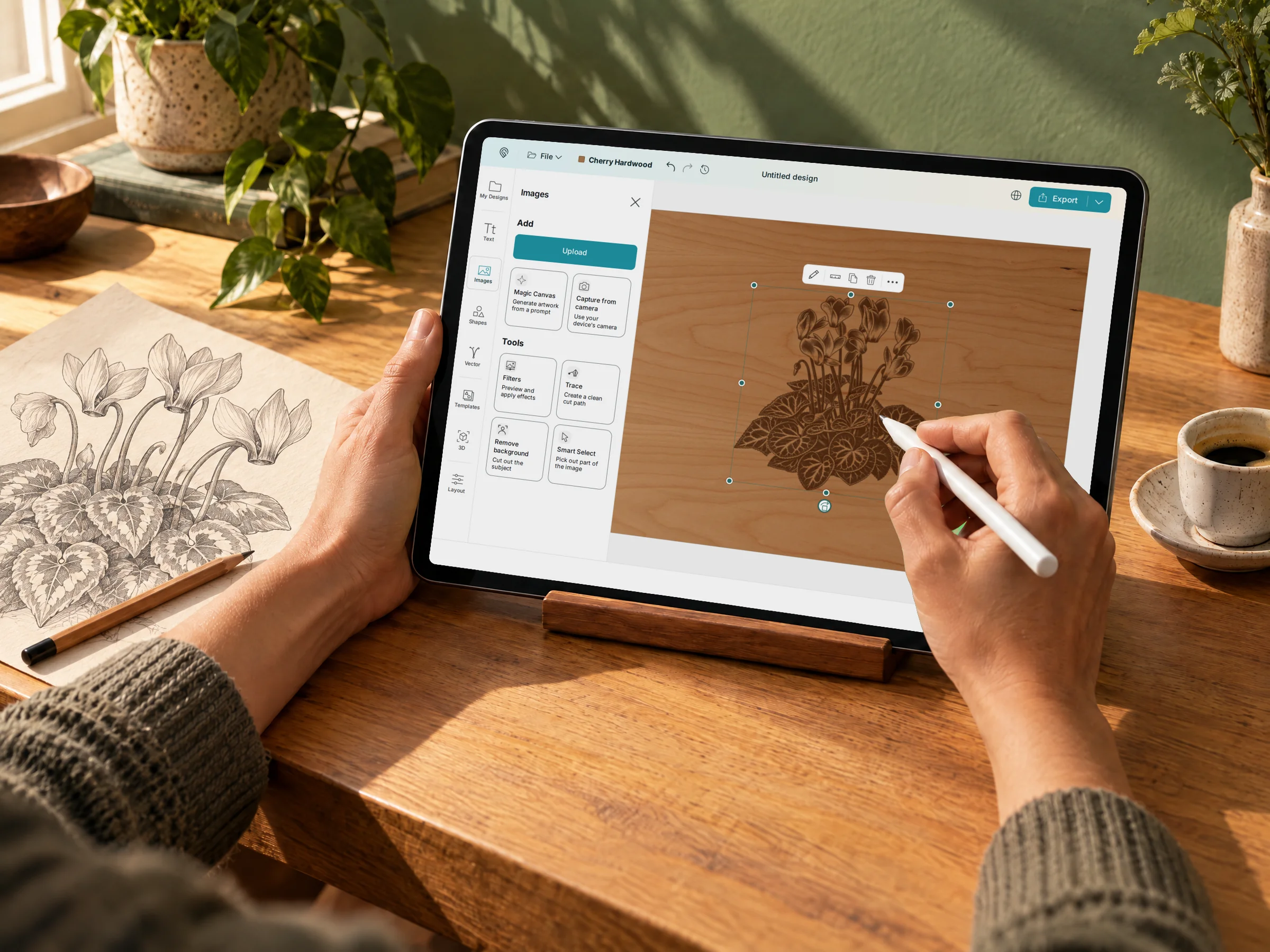
    Skip the fiddly prep like tracing images, cleaning up paths, setting up prints, and get straight to the creative part.

    Hands use a stylus on a tablet running Glowforge Studio, with a cyclamen design selected on a cherry wood board and a pencil drawing of the same cyclamen on the desk beside it
  • Create work that stands out.

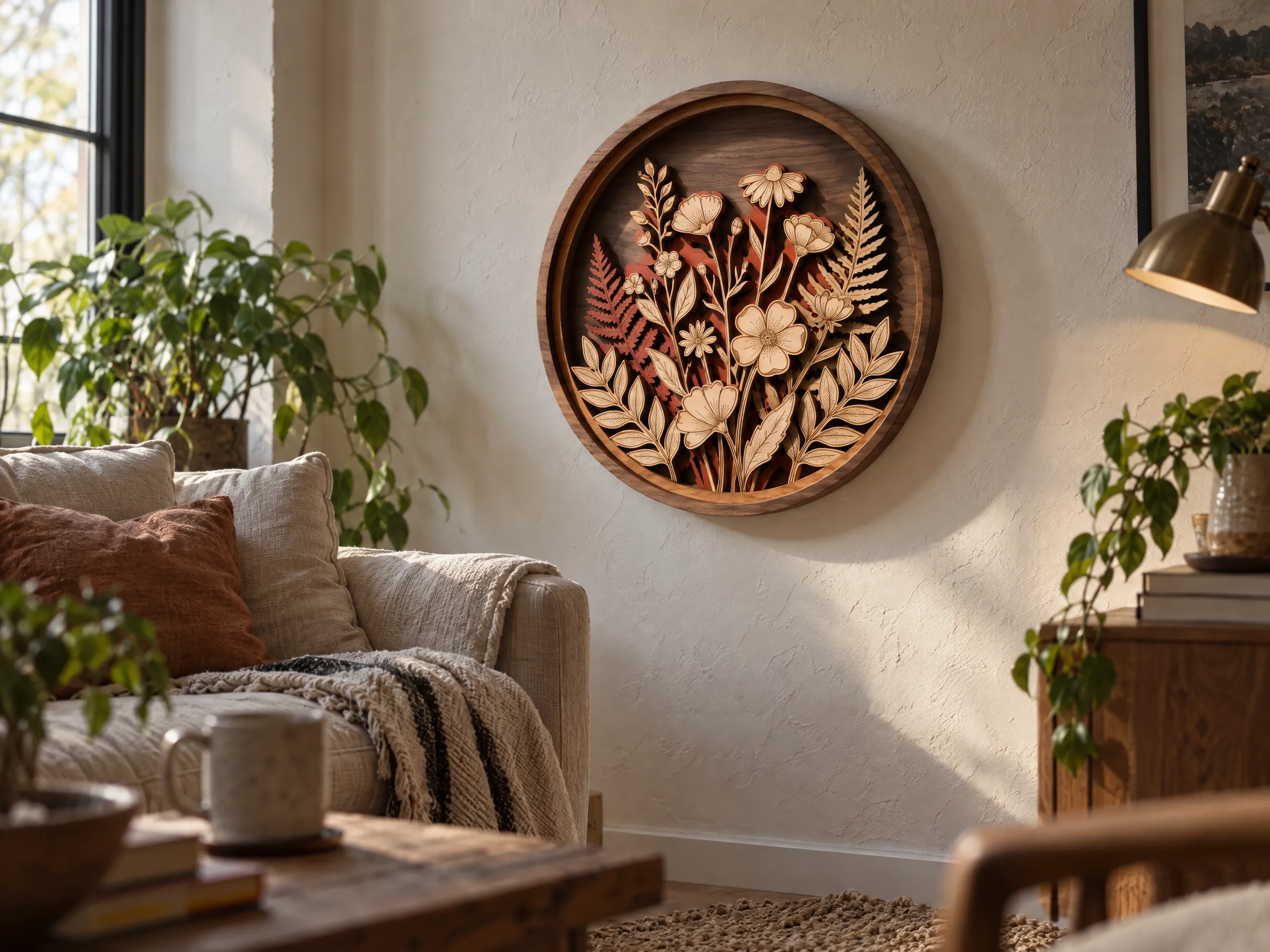
    Artwork, text styles, and finishing touches that turn a good idea into standout signature pieces.

    A round walnut frame holding a layered laser-cut panel of flowers and ferns hangs on a plaster wall in a lived-in living room, beside a linen sofa with cushions, plants and a brass lamp
  • Made for physical creations.

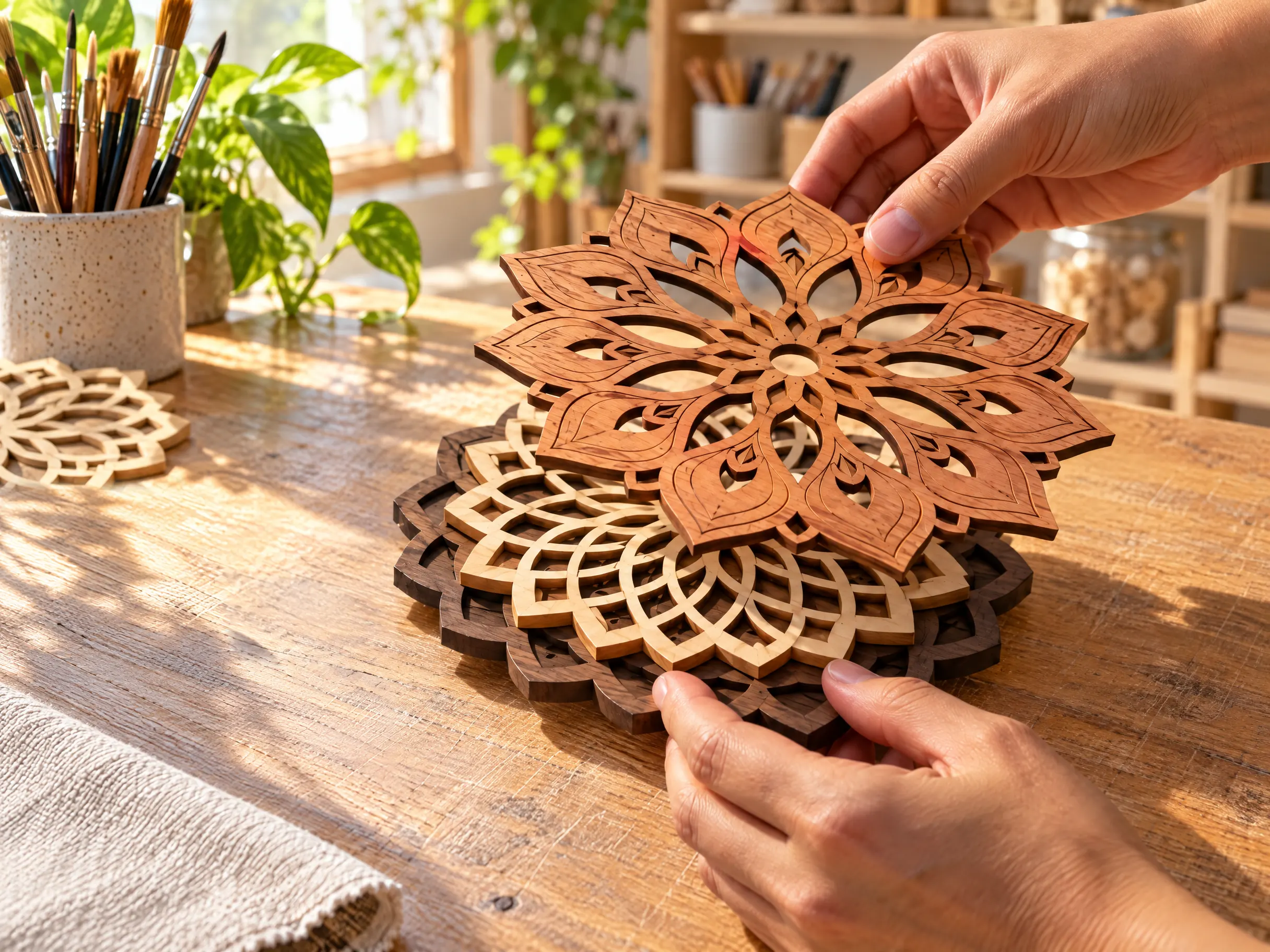
    Finally, tools that understand physical designs and how to turn digital designs into tangible creations.

    Two hands stack the cherry, maple and walnut layers of a laser-cut wooden mandala on a sunlit wooden craft table, with brushes and plants behind
  • Workflow tools that scale.

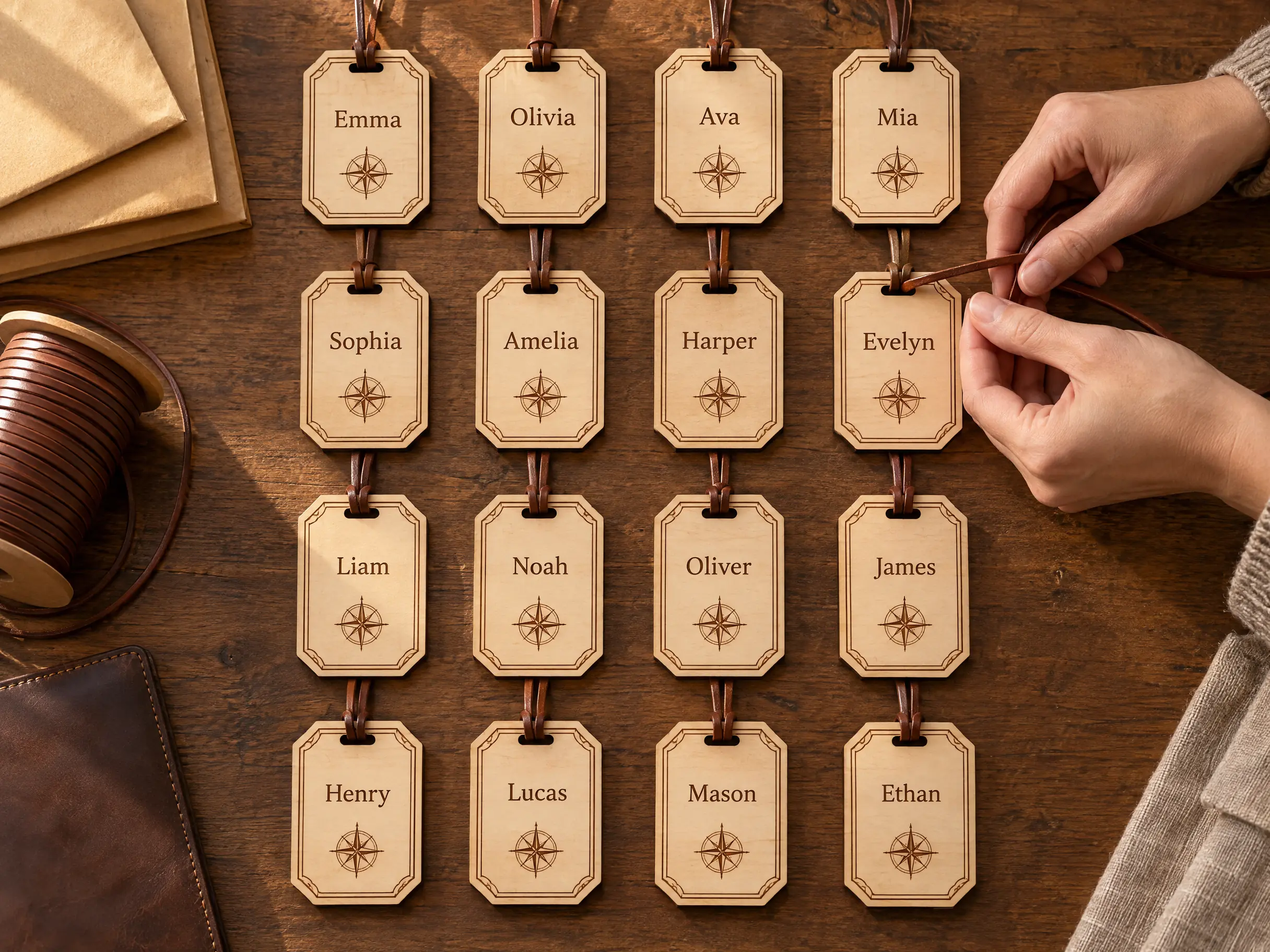
    Tools that grow with you: run off a batch of fifty, personalize every single one, and still make the holiday rush.

    Sixteen identical maple luggage tags with an engraved border and compass rose, each engraved with a different name, laid in rows on a walnut table as hands thread a leather strap through one
Hands use a stylus on a tablet running Glowforge Studio, with a cyclamen design selected on a cherry wood board and a pencil drawing of the same cyclamen on the desk beside it
A round walnut frame holding a layered laser-cut panel of flowers and ferns hangs on a plaster wall in a lived-in living room, beside a linen sofa with cushions, plants and a brass lamp
Two hands stack the cherry, maple and walnut layers of a laser-cut wooden mandala on a sunlit wooden craft table, with brushes and plants behind
Sixteen identical maple luggage tags with an engraved border and compass rose, each engraved with a different name, laid in rows on a walnut table as hands thread a leather strap through one

From idea to ready-to-make designs.

Made for lasers and cutting machines - not adapted to them.

Start

Never start from a blank canvas.

  • 10,000+ ready-to-make designs

    Expert-made, well-tested catalog designs with material thickness and joint fit built in.

  • Built to your size

    Customizable templates for designs that fit, from custom drawer organizers and boxes to packaging dielines.

  • Artwork for every idea

    Search 8 million ready-to-cut vector graphics, with AI tools to tweak and remix or turn them into printable designs.

Design

Take your designs to the next level.

  • AI that understands lasers

    Describe what you imagine and get artwork made for your machine: crisp vectors for cutting, rich images for engraving.

  • From picture to cut path

    Trace turns any sketch, logo, or bitmap into clean, cuttable outlines around anything.

  • Vector editing that thinks physical

    Simplify paths, repeat a motif along any curve, create patterned lines for perforations, and more: tools that know your design will be cut and assembled, not just looked at.

Personalize

Make it one of a kind.

  • Photos that engrave beautifully

    Filters designed for lasers turn any photo to engrave-ready in one tap.

  • Word art without the work

    Thousands of ready-to-cut fonts and text styles. Bend text along any curve for custom signs, greeting cards, or iron-ons.

  • Art in layers

    Split an image into pieces you cut and reassemble: stack them for dimensional art, or inlay woods, acrylics, and leather so every piece fits flush.

Production

Print fifty without designing fifty.

  • One design, a full run

    Eighty wedding place cards or fifty ornaments for the holiday rush: design one, and Make Copies fills the sheet with the rest.

  • Make every sheet count

    Preview your design on ~120 materials before committing, and Smart Fit automatically arranges your design to optimize material use.

  • Print to any machine

    Send a design straight to your machine with layers and operations intact, save an SVG, or use the LightBurn and xTool export routes.

Community

Designed by people like you.

Features

What's inside

One studio to start, design, personalize, and print.

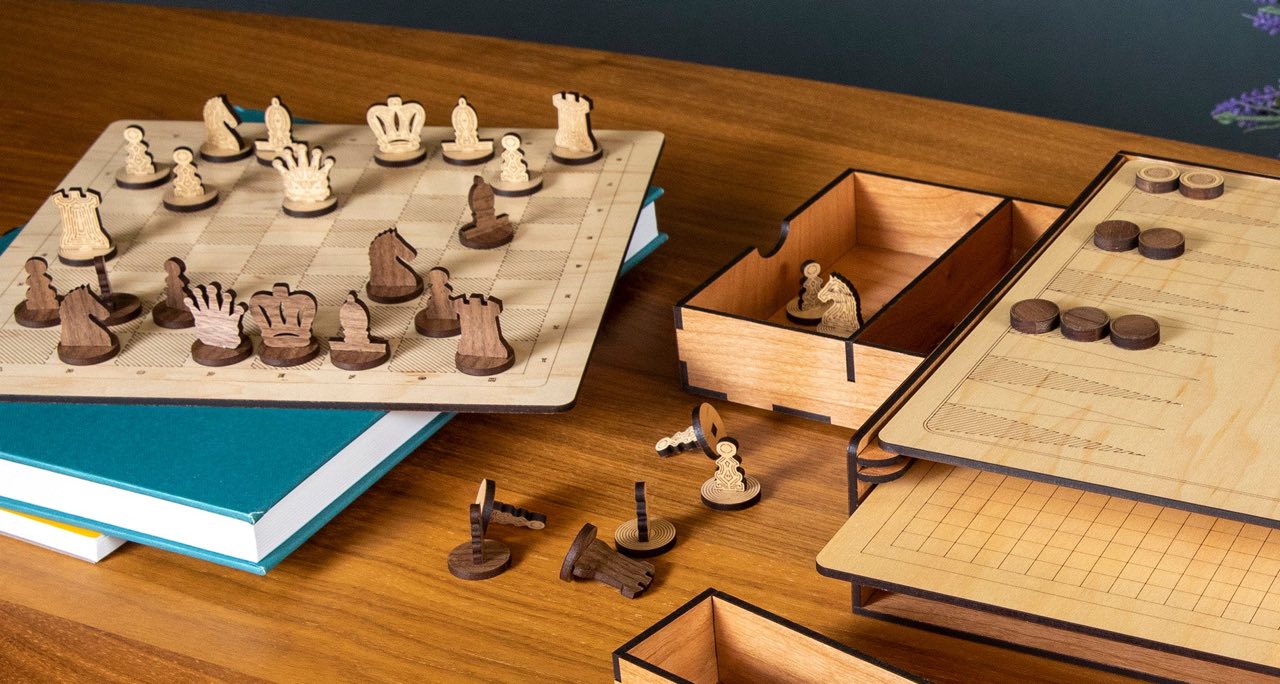
  • Laser-cut chess pieces in their presentation box

    Start with a ready-made design

    • Catalog designs - Browse 10,000+ ready-to-print designs and start making in minutes.
    • 3D projects - Turn a 3D model into flat parts to cut and assemble.
    • 8 million graphics - Huge library of ready-to-cut vector graphics.
    • Box maker - Customize size, add lids or custom compartments.
    • Packaging dielines - From shipping boxes to gift boxes to paper bags.
    • QR codes - Create a scannable QR code for your site or social profile.
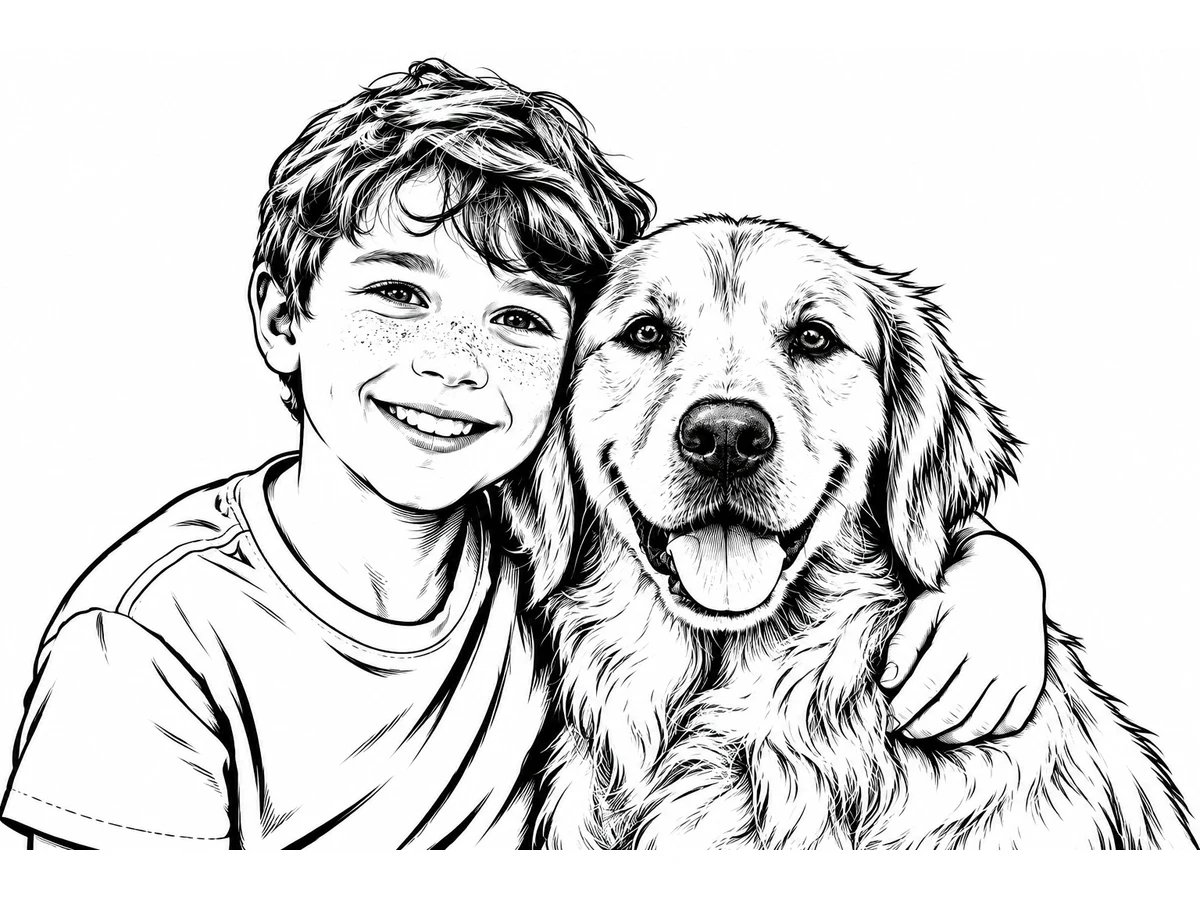
  • Comic Ink artwork of a child and golden retriever, with their original photo resting on top as a paper print

    Turn photos and ideas into projects

    • Magic Canvas - Describe and generate artwork made for laser.
    • Trace - Turn a photo into vector layers you can edit.
    • Engrave-ready filters - Prep any image for a crisp engrave in one click.
    • Advanced photo editing - Fine-tune your photos with a full set of editing tools.
    • Remove background - Click the subject of your photo to lift it out of the background.
    • Camera capture - Snap a sketch, drawing, or photo with your device and bring it straight into your design.
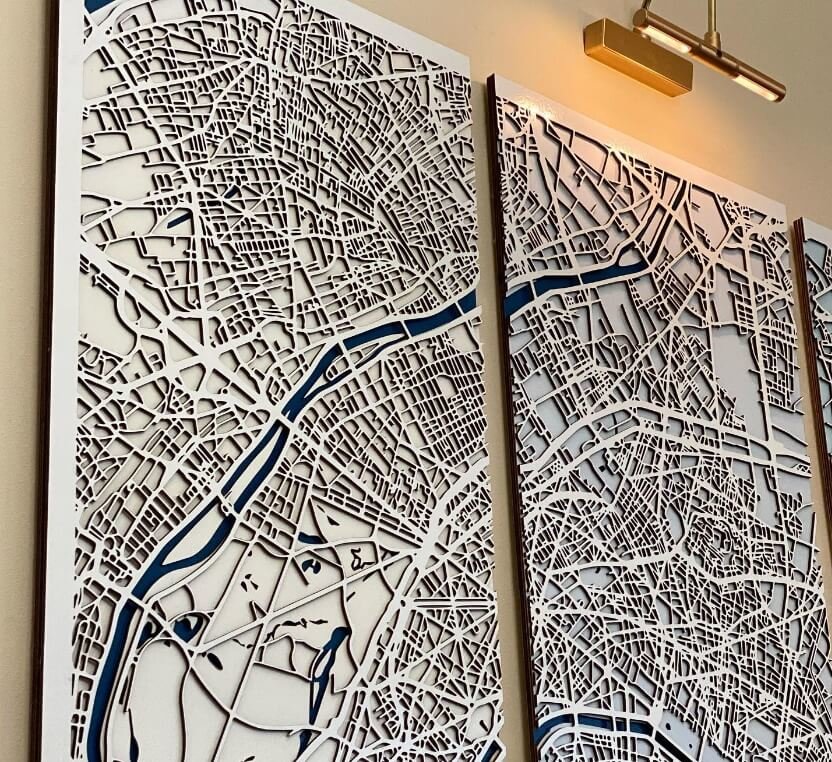
  • Three framed laser-cut street-map panels

    Edit vectors for real-world projects

    • Pen and line tools - Advance vectors tools to fine-tune every point and curve.
    • Outline and offset path - One-click add and adjust cutline around your artwork.
    • Boolean operations - Combine or subtract shapes, with a live preview of the result.
    • Pattern fill - Tile a graphic inside any closed shape.
    • Patterned line - Add repeating details along a line, like perforations or stitch holes.
    • Magic Vector - Edit vector artwork by simply describing the changes.
    • Magic image fill - Fill a vector with artwork generated from your text prompt.
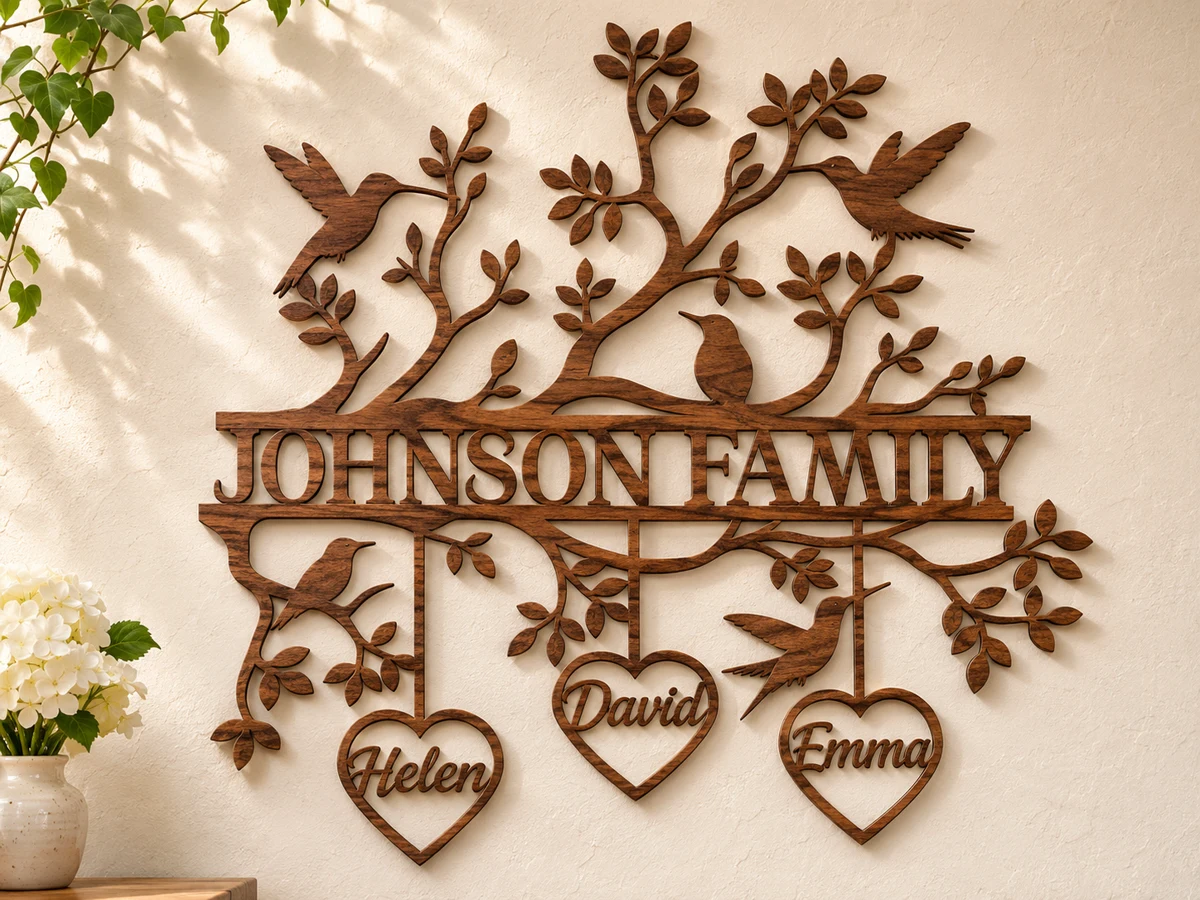
  • A wood Johnson Family wall sign with leafy branches, hummingbirds, and hearts reading Helen, David, and Emma

    Turn words into art

    • 2,000+ fonts - Find the right typeface for every project.
    • Text combo styles - Start with a text combination that's already designed for you.
    • Text on path - Set your text along any path in your design.
    • Warp text - Bend and stretch text to fill a shape.
    • Text templates - Fixed-size text boxes let you swap text without changing your layout.
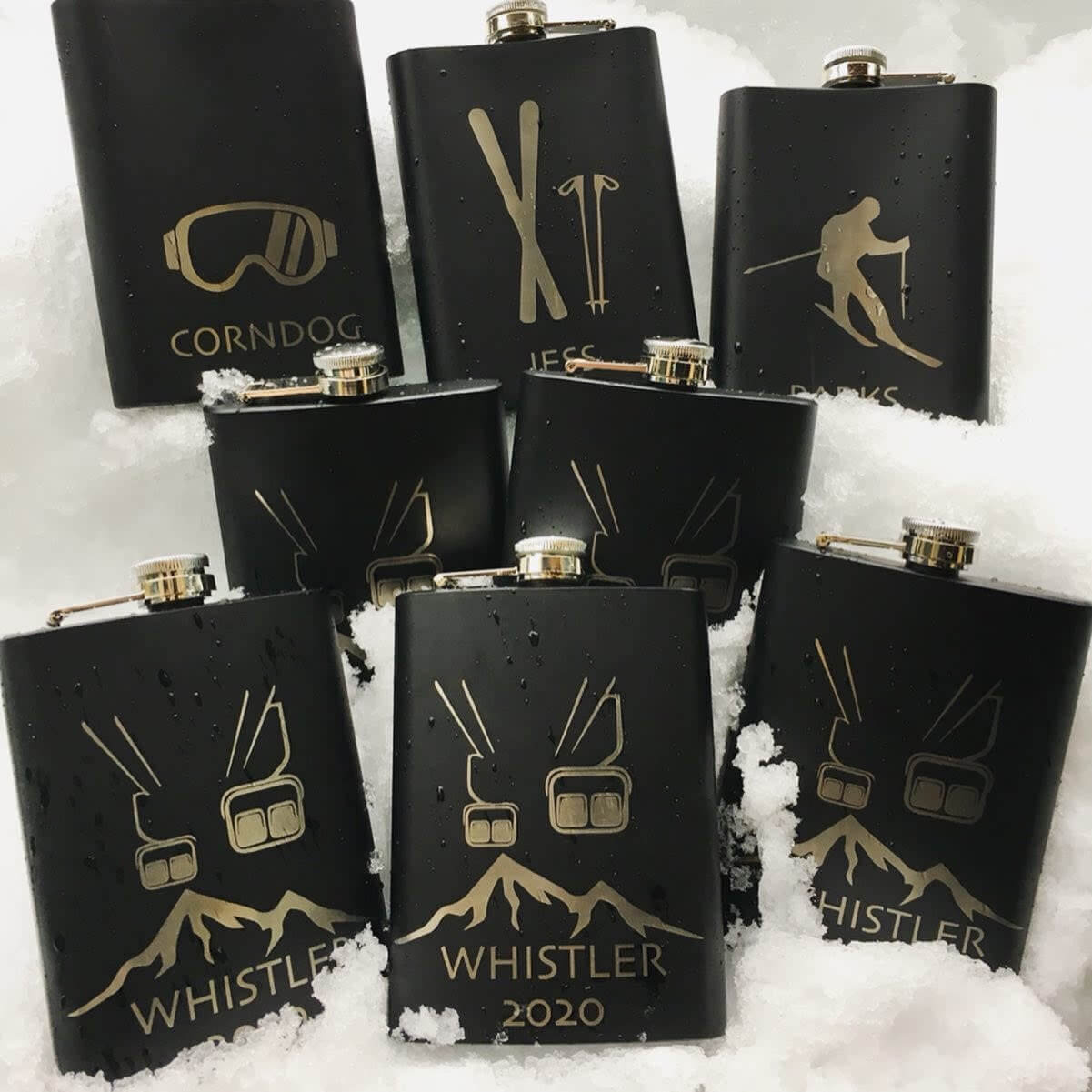
  • A batch of personalized engraved flasks

    Lay out, batch, and produce

    • Smart Fit - Arrange your parts automatically to get more from every sheet of material.
    • Make Copies - Repeat a design in a grid for batch production.
    • Precision layout - Position, align, and distribute every piece exactly where you want it.
    • Smart Arrange - Line up and evenly space the items on your canvas.
  • Studio material preview of a wood luggage tag engraved with a dog portrait, beside its black-and-white SVG export

    Export and print

    • Material previews - See how your design looks on about 120 materials before printing.
    • Printscan - Check that your design is ready to print before you send it.
    • Export SVG - Save your design as an SVG file.
    • Export LightBurn - Take your design into LightBurn and keep working.
    • Send to compatible machines - Send your design straight to your Glowforge or other compatible lasers with layers and operations.

Questions?

What can I make with Glowforge Studio?

You can design personalized signs, photo coasters, jewelry, boxes, and layered artwork for laser cutting and engraving with Glowforge Studio. Start with a ready-made Catalog design, create your own shapes and text, or bring in artwork to customize.

Is there an AI tool that turns ideas into artwork for laser engraving?

You can turn a written idea into artwork for laser engraving using Magic Canvas in Glowforge Studio. Choose among engraving-focused art styles, explore different subjects and variations, and adjust the generated image before using it in a project.

Where can I find ready-made laser-cutting designs and graphics?

You can choose from over 10,000 designer-made, ready-to-print Catalog designs and over 8 million vector graphics in Glowforge Studio. Personalize a starting design with names, graphics, and your own artwork, or use individual graphics to create a project of your own.

Can I make a laser project from my own photo or drawing?

You can bring family photos, sketches, and children's drawings into Glowforge Studio by importing an image or capturing it with your device's camera. Combine your artwork with text, shapes, and library graphics to create a personalized project.

How do I prepare a photo for laser engraving?

You can prepare a photo for laser engraving using the photo editing tools and engrave-ready filters in Glowforge Studio. Remove a distracting background, adjust brightness and contrast, or apply a line art or woodcut treatment for a photo coaster, portrait, or gift.

How do I turn a picture into shapes a laser can cut?

You can turn a picture into editable cut shapes in a few clicks with Trace in Glowforge Studio. It generates vector shapes from your image, saving you from redrawing outlines by hand. For stacked artwork, Layered Trace separates the picture into layers you can cut and assemble.

How do I create an outline to cut out a bitmap image?

You can add a vector cut line around a bitmap image using Outline in Glowforge Studio. Rubber Band wraps a contour around selected pieces, while Offset Path lets you add an inward or outward offset to adjust the border. You can engrave the image and cut around it without drawing the perimeter by hand.

How can I make 3D objects with a laser cutter?

You can design 3D projects from flat parts to cut and assemble using Glowforge Studio. Start with the box generator or a ready-made Catalog template, or import an STL or OBJ model into the built-in 3D Slice tool. Model slicing creates flat cutting plans for constructions such as stacked layers or interlocking slices.

How can I personalize signs and gifts with names or messages?

You can personalize signs, gifts, and ornaments with names or messages using the text tools in Glowforge Studio. Choose fonts and text combinations, or use fixed-size text templates to swap names and messages without changing your layout.

How do I curve lettering around a sign or fit words inside a shape?

You can curve lettering along a path with Text on Path in Glowforge Studio, or bend and stretch it to fill a shape with Warp Text. These tools let you wrap a name around a round sign or fit a message into your artwork.

Is there a way to repeat stitch holes or decorative details along a line?

You can add repeating details, including perforations and stitch holes, with Patterned Line in Glowforge Studio. The tool repeats details along a line, so you can create decorative borders or prepare repeated holes for projects you cut and assemble.

How can I design a box or package to fit what I'm making?

You can design boxes with adjustable dimensions, lids, and compartments using the box maker in Glowforge Studio. Packaging dielines provide starting designs for gift boxes and paper bags, which you can customize with graphics and lettering for a gift or product.

How do I fit more pieces onto a sheet of material?

You can lay out batch projects using Make Copies, Smart Arrange, and Smart Fit in Glowforge Studio. Make Copies repeats a design in a grid, Smart Arrange aligns and spaces items, and Smart Fit arranges parts to use your material efficiently.

How can I tell what my design will look like on a material before I print it?

You can get a visual idea of how your design will look before printing by using material previews in Glowforge Studio. Compare different material textures as you design, keeping in mind that the finished result depends on your material and print settings.

What design software works with the laser I already own?

You can use designs from Glowforge Studio with LightBurn or other compatible laser software by exporting LightBurn or SVG files. You do not need to own a Glowforge. Open the exported file in software that supports your machine to set power, speed, and other print settings.

Make something ambitious.

Design for any laser, engraver or cutting machine.